For many years I've been implementing Exchange server in SMB environments without using a DMZ or reverse proxy to control access to Exchange services. At least since Exchange 2010 came out, I've been arguing that they don't really add much security value and that none of my customers (nor any others I've heard of) had any issues with doing this.
Large companies have fairly rigid security policies. One of these policies is typically that no network traffic is passed directly to the LAN from the Internet. There needs to be some sort of reverse proxy in a DMZ (perimeter network in MS speak). In classes where I teach Exchange, the students from larger organizations typically believe strongly in these policies. They are risk adverse and this is the way it's always been. And many times, they have no control over this policy.
Well, a beautifully written article from Greg Taylor on the Exchange Team lays it all out for you to consider. From my perspective, it solidifies what I've thought for some time. It may give you some new ideas to consider.
Check out Greg's article here:
Wednesday, July 17, 2013


Monday, July 15, 2013
Exchange 2013 Corrupted Health Mailboxes
While in the process of removing a database from an Exchange 2013 server, I got the following error:
Next I tried to view the monitoring mailboxes by using:
The simple fix is to manually delete the objects referenced by the errors from that OU by using Active Directory Users and Computers. After removing the object, the error is gone. You cannot use the Remove-Mailbox cmdlet to remove the accounts because Exchange does not have the necessary permissions.
It may be possible to resolve this error by giving Exchange Trusted Subsystem additional permissions to this OU, but I'll leave that for the Exchange team in the next cumulative update.
Note: Exchange 2013 RTM created the user accounts for these mailboxes in the Users folder. Exchange 2013 CU1 creates them in this new location. This may account for the changed behaviour causing the errors.
Deleting the health mailboxes is low risk because they should be recreated by the Microsoft Exchange Health Manager service on the Exchange 2013 server when that service is restarted.
Update: If the health monitoring mailboxes are not being recreated after you delete them, verify that the domainname/Microsoft Exchange System Objects/Monitoring Mailboxes OU exists. One commenter below was having issues and running ADPrep again created the container which allowed the health mailboxes to be recreated.
Failed to remove monitoring mailbox object of database "DBname". Exception: Active directory operation failed on Servername. This error is not retriable. Additional information: Access is denied. Active directory response: 000000005: SecErr: DSID-031520B2, problem 4003 (INSUFF_ACCESS_RIGHTS), data 0.The database was removed, but there seemed to be some sort of Active Directory error when deleting the monitoring mailboxes associated with the database.
Next I tried to view the monitoring mailboxes by using:
Get-Mailbox -MonitoringThis showed me mailboxes with the following error:
WARNING: The object domainname/Microsoft Exchange System Objects/Monitoring Mailboxes/HealthMailboxbiglongGUID has been corrupted, and it's in an inconsistent state. The following validation errors happened: WARNING: Database is mandatory or UserMailbox.After doing some searching, this problem is a result of Exchange 2013 not having sufficient permissions to the domainname/Microsoft Exchange System Objects/Monitoring Mailboxes OU. The database attribute is blank because the database it referenced no longer exists.
The simple fix is to manually delete the objects referenced by the errors from that OU by using Active Directory Users and Computers. After removing the object, the error is gone. You cannot use the Remove-Mailbox cmdlet to remove the accounts because Exchange does not have the necessary permissions.
It may be possible to resolve this error by giving Exchange Trusted Subsystem additional permissions to this OU, but I'll leave that for the Exchange team in the next cumulative update.
Note: Exchange 2013 RTM created the user accounts for these mailboxes in the Users folder. Exchange 2013 CU1 creates them in this new location. This may account for the changed behaviour causing the errors.
Deleting the health mailboxes is low risk because they should be recreated by the Microsoft Exchange Health Manager service on the Exchange 2013 server when that service is restarted.
Update: If the health monitoring mailboxes are not being recreated after you delete them, verify that the domainname/Microsoft Exchange System Objects/Monitoring Mailboxes OU exists. One commenter below was having issues and running ADPrep again created the container which allowed the health mailboxes to be recreated.
Exchange 2013 Hidden Mailboxes
In the graphical/web-based interface for Exchange 2013, the list of recipients does not include utility mailboxes such as:
In the Exchange Management Shell (EMS), the discovery search mailbox is retrieved by the Get-Mailbox cmdlet. So, you can use the following to move the discovery search mailbox:

We had not implemented these, but other things that might trip you up are:
If you have not removed all mailboxes from a database before attempting to delete it, you will get the following error:
- discovery search mailbox
- arbitration mailboxes
In the Exchange Management Shell (EMS), the discovery search mailbox is retrieved by the Get-Mailbox cmdlet. So, you can use the following to move the discovery search mailbox:
Get-Mailbox -Server RetiringServer | New-MoveRequest -TargetDatabase DBonNewServerTo get a list of the arbitration mailboxes, you need to use the -Arbitration switch with the Get-Mailbox cmdlet as shown in the screenshot below:

We had not implemented these, but other things that might trip you up are:
- archive mailboxes (use the -Archive switch)
- public folder mailboxes (use the -PublicFolder switch)
If you have not removed all mailboxes from a database before attempting to delete it, you will get the following error:
The mailbox database contains one or more mailboxes, mailbox plans, archive mailboxes, public folder mailboxes, or arbitration mailboxes.
Tool for SMART Status
I have an inexpensive test server that includes Intel's built in RAID functionality on the motherboard (Intel Rapid Storage Technology enterprise). This is a simple RAID controller that allows me to run RAID 10 on the server and have a bunch of virtual machines. However, it has a tendency every few months or so, to drop a drive from the array.
When a drive drops, I want to see the SMART status of the drive. This allows me to see the physical status of the drive and determine whether the drive is failing. However, the Intel management tool for the controller does not show the SMART status for the individual drives. Kind of a big oversight in my mind. Also, many tools that you can download to view SMART status don't work when RAID is enabled.
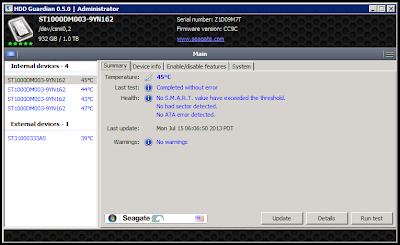
Today I found a nice open source utility for Windows to view the SMART status that works with this RAID controller. It is hddguardian. You can get it here:
Here is a screenshot:
When a drive drops, I want to see the SMART status of the drive. This allows me to see the physical status of the drive and determine whether the drive is failing. However, the Intel management tool for the controller does not show the SMART status for the individual drives. Kind of a big oversight in my mind. Also, many tools that you can download to view SMART status don't work when RAID is enabled.
Today I found a nice open source utility for Windows to view the SMART status that works with this RAID controller. It is hddguardian. You can get it here:
Here is a screenshot:

Wednesday, June 26, 2013
Free Online Training for Windows Server 2012 R2 and System Center 2012 R2
Microsoft has a couple of free online training events coming up in July:
After these events are over, Microsoft typically makes them available as online videos. I expect that the above links will be updated.
After these events are over, Microsoft typically makes them available as online videos. I expect that the above links will be updated.
Tuesday, June 18, 2013
UnexpetectedExchagneAuthBlob
While testing mail flow before an Exchange 2007 to Exchange 2013 migration is received the following error from an Exchange 2013 server to an Exchange 2007 server:
In the short term, I change the time on one server and verified that mail flow started to work properly. Long run I need to identify why time what not properly synchronized and fix it.
454 4.7.0 Temporary authentication failureFurther investigation in the SMTP receive protocol log showed this error:
Inbound ExchangeAuth negotiation failed because of UnexpetectedExchagneAuthBlobLuckily based on some quick searches I was able to identify time synchronization as the source of the issue. Active Directory authentication starts to fail when time synchronization is not within 5 minutes. In this case the time difference was 6 minutes.
In the short term, I change the time on one server and verified that mail flow started to work properly. Long run I need to identify why time what not properly synchronized and fix it.
Exchange Authentication Error
I'm just performing a migration from Exchange 2007 to Exchange 2013. After installing Exchange 2013 and configuring the certificates, my next step was to verify mail flow between the two systems. Mail flow from Exchange 2007 to Exchange 2013 was fine. However, mail flow from Exchange 2013 to Exchange 2007 was failing.
In the Queue Viewer on the Exchange 2013 server I could see the following message:
This made me suspect that the Anonymous Relay connector was being used instead of the Default connector. To confirm this I looked in the SMTP Receive protocol log in C:\Program Files\Microsoft\Exchange Server\TransportRoles\Logs\ProtocolLog\SmtpReceive. Searching the most recent log for the IP address of the Exchange 2013 server showed that the Anonymous Relay connector was being used.
I then looked in the configuration of the Anonymous Relay connector on the Network tab. There were a large number of remote IP addresses listed as allowed to use the Anonymous Relay connector (probably more than there should be, but that's an issue for another day). The entire subnet that the Exchange 2013 was located on was listed.
Exchange Server chooses a receive connector to use based on how specific the remote IP addresses listed in the connector are. The subnet listed in the Anonymous Relay connector was more specific that the 0.0.0.0-255.255.255.255 listed in the Default connector. Therefore the Anonymous Relay connector was being used.
To fix this problem, I added the individual IP addresses of the Exchange 2013 servers to the Default connector on the Exchange 2007 server. This was then more specific than the subnet in the Anonymous Relay connector. After this was complete, the Default connector was used.
In the Queue Viewer on the Exchange 2013 server I could see the following message:
451 4.4.0 Primary target IP address responded with: "451 5.7.3 Cannot achieve Exchange Server authentication." Attempted failover to alternate host, but that did not succeed. Either there are no alternate hosts, or delivery failed to all alternate hosts.This message indicates that Exchange Server authentication is failing before the message is sent. This can happen because of the following reasons:
- A firewall between the servers strips out extended SMTP verbs that are required for Exchange Server authentication. Specifically the following SMTP verbs must be allowed: X-ANONYMOUSTLS, X-EXPS, and GSSAPI. In most cases, this is not an issue on internal networks.
- Exchange Authentication is not enabled on the receive connector being used. This is most likely.
- Default ServerName
- Anonymous Relay for internal devices
This made me suspect that the Anonymous Relay connector was being used instead of the Default connector. To confirm this I looked in the SMTP Receive protocol log in C:\Program Files\Microsoft\Exchange Server\TransportRoles\Logs\ProtocolLog\SmtpReceive. Searching the most recent log for the IP address of the Exchange 2013 server showed that the Anonymous Relay connector was being used.
I then looked in the configuration of the Anonymous Relay connector on the Network tab. There were a large number of remote IP addresses listed as allowed to use the Anonymous Relay connector (probably more than there should be, but that's an issue for another day). The entire subnet that the Exchange 2013 was located on was listed.
Exchange Server chooses a receive connector to use based on how specific the remote IP addresses listed in the connector are. The subnet listed in the Anonymous Relay connector was more specific that the 0.0.0.0-255.255.255.255 listed in the Default connector. Therefore the Anonymous Relay connector was being used.
To fix this problem, I added the individual IP addresses of the Exchange 2013 servers to the Default connector on the Exchange 2007 server. This was then more specific than the subnet in the Anonymous Relay connector. After this was complete, the Default connector was used.
Subscribe to:
Posts (Atom)